
Backup / Restore for New Relic
Keep versioned copies of dashboards, alert policies, conditions, workflows and synthetic monitors in your own GitHub repository.
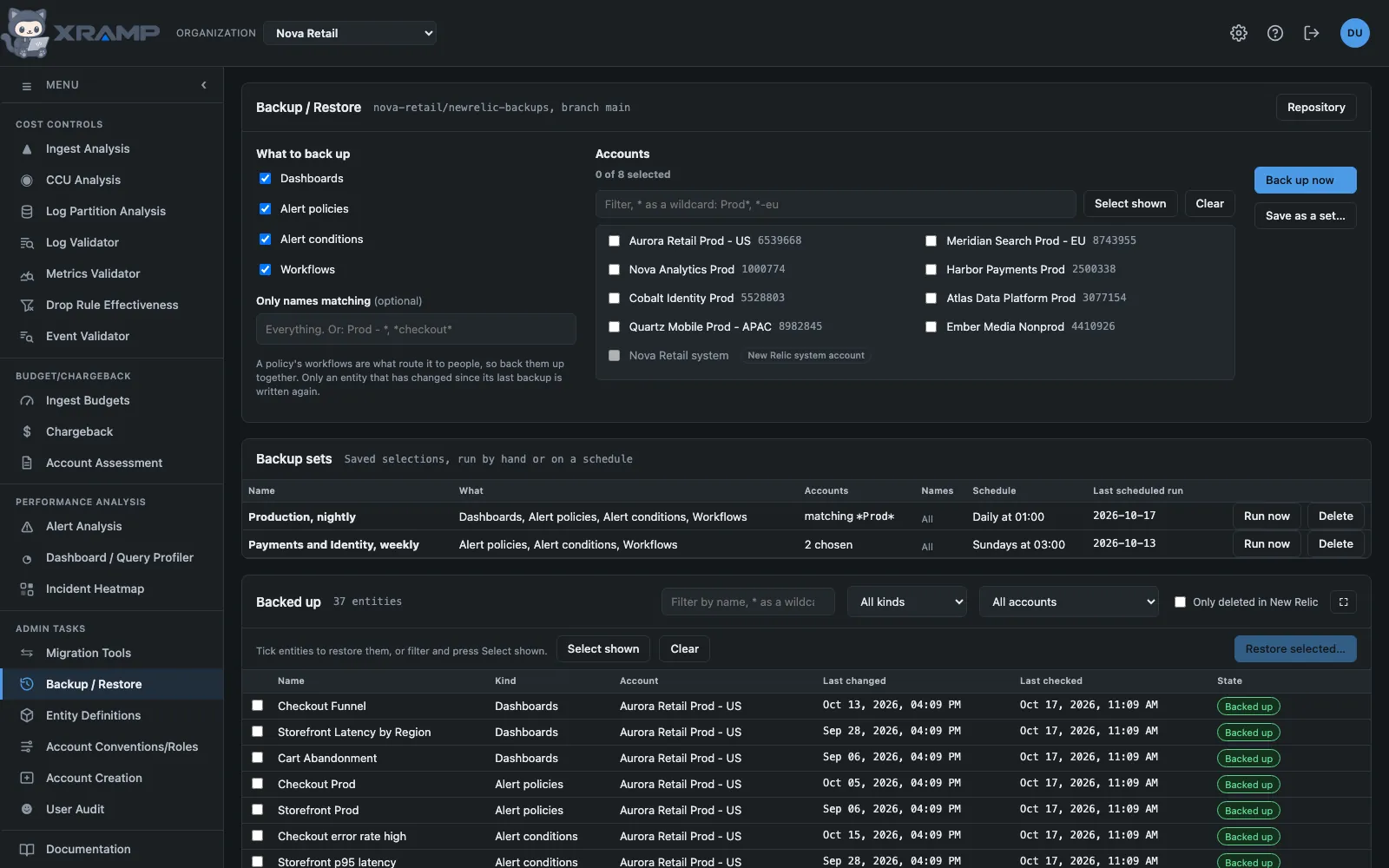
What it shows and how to read it
Copies of your dashboards, alert policies, alert conditions, workflows and synthetic monitors, kept in a GitHub repository of your own. GitHub is the version control: every backup is one commit holding only what changed, so each file's commit history is that entity's history, and any earlier version can be read back.
The repository
Each organization backs up to one repository, set by an admin under Repository: the repository as owner/name, the branch, and a personal access token. A fine-grained token limited to that one repository, with Contents: Read and write, is all it needs. The token is stored on the server and never sent to a browser; the screen shows only whether one is set and its last four characters. Save and check asks GitHub whether the token can write there, and warns if the repository is public: the files name your accounts, queries and thresholds, so use a private one. The API address is only for GitHub Enterprise Server, whose API lives on your company's own host.
What is backed up
- Dashboards, with their pages, widgets and variables.
- Alert policies, with their incident preference.
- Alert conditions: NRQL conditions, static and baseline, with their thresholds and signal settings, and the older kinds New Relic keeps behind a separate API: infrastructure (metric, process running, host not reporting), APM, browser and mobile metric, synthetics and external service.
- Workflows, with what they listen for and where they send.
- Synthetic monitors, of every type: simple, browser, scripted browser, scripted API, step, broken links and certificate check. A scripted monitor is saved with its script. Secure credentials a script uses are never backed up, so they have to exist when a monitor is restored.
A few very old condition types, such as APM baseline, are returned by neither of New Relic's APIs. A backup cannot copy those, so it names each one it had to leave out, in its result and against the run in Recent backups, instead of passing over it.
Workflows are backed up with policies on purpose. A workflow is what routes a policy's incidents to people, so a policy restored without it would fire and reach nobody.
Each entity is one file, named by its New Relic id rather than its name, so a rename is a change to the file and not a new file:
accounts/<account id>/dashboards/<guid>.json accounts/<account id>/policies/<policy id>.json accounts/<account id>/conditions/<condition id>.json accounts/<account id>/workflows/<workflow id>.json accounts/<account id>/synthetics/<monitor id>.json
Running a backup
Tick the kinds, tick the accounts, and press Back up now. The account filter takes *
as a wildcard, so Prod* lists every account beginning Prod; Select
shown then ticks what the filter found. Only names matching narrows the entities
themselves the same way, with commas between several patterns: Prod - *,
*checkout*.
Before anything is read, a confirmation lists exactly which accounts the selection covers and where it will be written. Nothing in New Relic is changed by a backup.
Everything chosen is read from New Relic, and only what has changed since its last backup is written, all in one commit. A run in which nothing changed makes no commit. An entity that was backed up before and is no longer in New Relic is marked Deleted in New Relic, and its file is kept, so it can still be read and restored. If a kind cannot be read in an account, for example because the key may not see that account's alerts, the run says so and carries on; nothing is marked deleted on the strength of a failed read.
One backup runs at a time for an organization. It carries on if you leave the page.
Backup sets and schedules
Save as a set keeps the current selection under a name: the kinds, the ticked accounts and the name pattern. If an account filter is typed, the set can also follow it, taking in any account that matches when it runs, including one created after the set was saved.
A set runs by hand with Run now, which lists what it covers today and asks before starting, or on a schedule: daily, or weekly on a day, at an hour in the application's time zone, set in Admin under General. A scheduled run is checked every ten minutes, runs once on its day, and is recorded in Recent backups as run by Schedule. Deleting a set removes nothing it has backed up.
Reading a backup
Backed up lists every entity with when it last changed and when it was last checked. Filter by name with * as a wildcard, by kind, by account, or to only those deleted in New Relic.
Click an entity for its history: its versions down the left, newest first, each dated. Choosing one shows Changes, the lines added and removed against the version before it, or the Full file as it was. Recent backups lists each run with how many entities it read, how many were new, changed or unchanged, and a link to its commit on GitHub.
Restoring
A restore puts an entity back to a version that was backed up, in the account it came from. It is for admins.
There are two ways in. Tick entities in Backed up and press Restore selected:
the filter takes * as a wildcard and Select shown ticks everything it found, so
Prod - * followed by Select shown is every entity with that prefix. Or open
one entity's history, choose a version, and press Restore this version.
Either way, nothing is changed until you have read what would happen. The restore window lists every entity with what restoring would do:
- Recreate: it is not in New Relic, and would be made again from the backup.
- Change back: it is there but differs from the backup, and would be set to the backup.
- Nothing: it already matches.
- Cannot: with the reason, for example that it had not been backed up yet on the date asked for.
Changes on a row shows exactly what restoring it would alter: New Relic as it is now against the version chosen, line by line. With several entities ticked, each is restored to its newest backup unless you give a date and time under Restore each as it was on, which takes the newest version at or before that moment.
What an entity depends on comes with it, marked Added. A condition whose policy is gone brings the policy back first. A policy that has to be recreated gets a new id from New Relic, so its conditions are restored onto it and the workflows that routed it are repointed at the new id; without that it would fire and reach nobody.
A synthetic monitor that has to be recreated gets a new id from New Relic, so an alert condition that watched the old one has to be pointed at the new one. Its script is restored with it, and a script's secure credentials, which are never backed up, must still exist.
Pressing Restore does what the list said and nothing else: if anything changed between reading the list and pressing the button, the restore is refused and asks you to look again. Before anything is overwritten, its current state is committed to the repository, so a restore can itself be undone by restoring the version from just before it.
Three limits are worth knowing. A deleted dashboard is undeleted where New Relic still allows it, which keeps its address and every link to it; otherwise it is made again and gets a new address. A workflow sends through notification channels, which are not backed up, so a workflow whose channels were deleted with it cannot be recreated from here. And a restore goes only to the account the entity came from; moving something to another account is what Migration Tools is for.
After a restore, run a backup, so the repository records what New Relic holds now.
Who can do what
Anyone granted this module can see what is backed up and read its history. Setting the repository, running a backup, managing sets and restoring are for admins.
Related modules
Every X-RAMP plan includes every module. See the plans.