
Migration Tools for New Relic
Migrate dashboards, alerts, synthetics, workloads and drop rules between accounts, alone or together, previewed before anything is written.
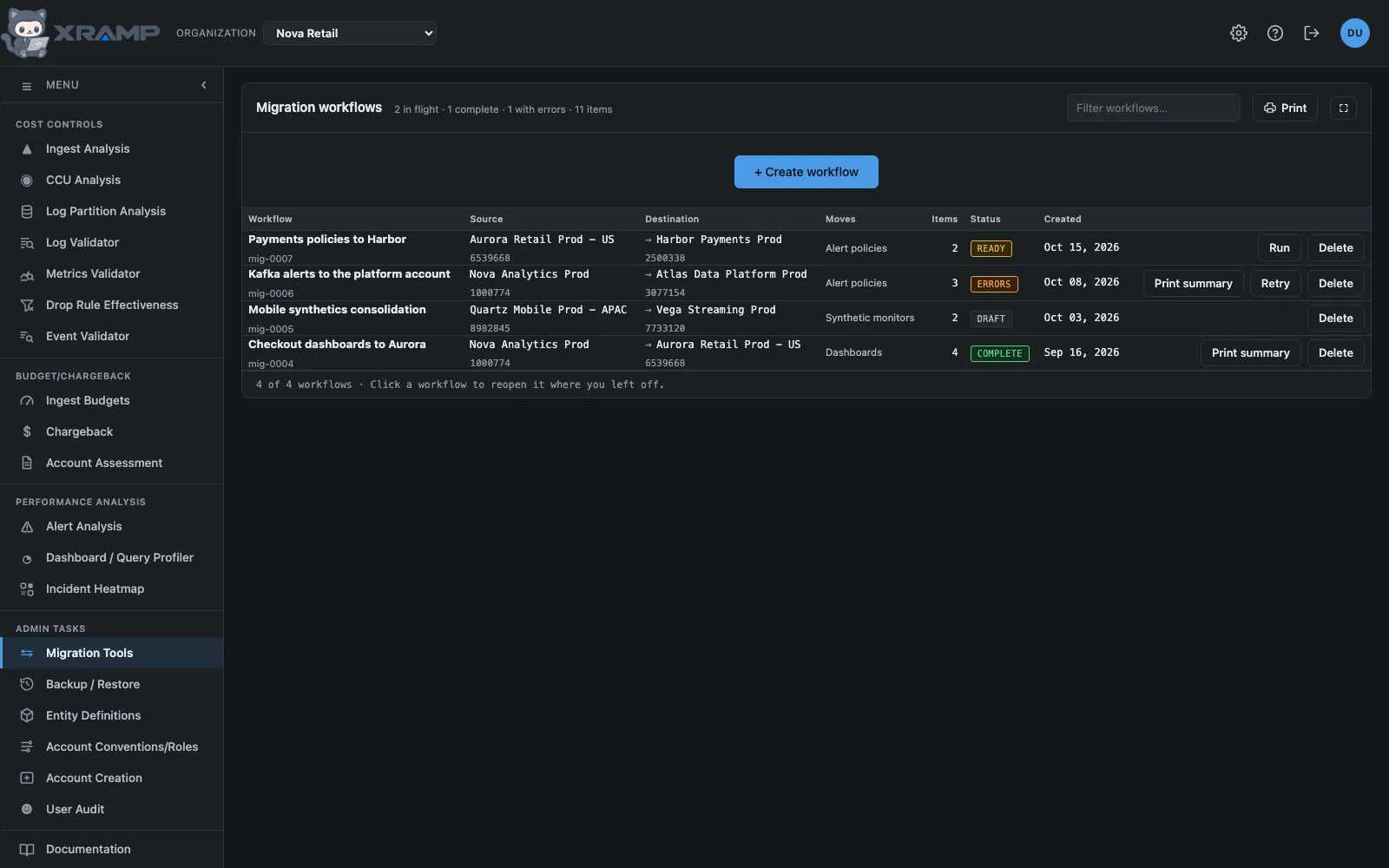
What it shows and how to read it
A workflow is a plan to copy New Relic configuration from one account into another. The table lists what is in flight and what is finished; Create workflow steps through defining one.
The five steps
- Accounts. Name it, and pick the source and destination. Both boxes search as you type, across all your accounts by name or by account id, and confirm underneath what the text resolved to. An account cannot be both source and destination, and that is refused rather than left to fail halfway.
- Entity Types. Which kinds of configuration to move.
- Entities to Migrate. The specific entities, read live from the source account, grouped by kind. Each kind has its own search box and its own Only selected box, under its heading and scoped to it: searching the dashboards leaves the policies as they were. The boxes autocomplete from that kind's own names, the same way the account fields do, and commas separate terms so an entity matching any of them is shown. Only selected hides everything of that kind not already ticked, which is how you check what a long list adds up to. A dashboard is listed once, under its own name, with its tabs named beneath it. New Relic keeps each tab as an entity of its own, called "Dashboard / Tab", but a tab is not something to migrate by itself: ticking a dashboard migrates the whole of it, every tab included. Searching finds a dashboard by any of its tabs' names as well as its own. A workflow saved when a tab could still be ticked now means the dashboard that tab belongs to, once however many of its tabs were ticked. Each heading says how many of its kind are showing, and select all shown means what is on screen in that group rather than the whole kind.
- Review. What the workflow holds: its name, both accounts, the kinds of configuration, and how many entities.
- Dependencies. The last step before the workflow is saved as ready. It runs the dependency check, with a progress bar that names what it is reading, then shows what the workflow would carry and what would arrive broken, and lets you map each of those to an entity in the destination. Create workflow unlocks when the check has finished, and saves the workflow as ready with your mappings.
Mapping what would arrive broken
The check reads each alert condition you selected and finds what it points at that belongs
to the source account: an entity guid inside its query, an APM application by id, an
infrastructure host by name, or a synthetic monitor by id. It also looks for log
partitions. A partition is queried as an event type of its own, such as
Log_Eu, so an alert condition or a dashboard that reads one of the source
account's partitions reads nothing in a destination that has no partition by that name, and
nothing says so. If the destination has a partition with the same name it is matched for
you; if it has none, the check warns, naming the conditions and dashboards that read it. A
reference whose counterpart in the destination is found by name is matched for you. One
that nothing matches is a warning, because the condition would be created and then
watch nothing, or never fire.
Each warning that names something has a Map entities button. It opens two lists side by side. The first list has two columns: Source entities, with the name and id of each thing that caused the warning, and Mapped to, which starts blank. The second list is the entities in the destination of the same type, with their ids, and it has a search box that narrows it by name or id.
Click a blank Mapped to cell, then click the entity it should become in the second list. The cell fills in, and the next blank one is selected for you so a run of them goes quickly. Click a filled cell to choose a different match, or × to take the mapping away. When every reference in a warning is mapped, the warning turns green and the references list above it says mapped by you.
A mapping applies to every condition in the workflow that names that source entity, and it is saved with the workflow. When the workflow is run, the source's guids, application ids, host names, monitor ids and log partition names are replaced with the ones you chose as each condition is created in the destination. A mapping you made comes before anything found by name or recorded by an earlier run. A warning you leave alone is carried as it is. When the check finds nothing that needs a mapping, the step says No mapping required. Changing the destination account clears the mappings, because they point at the old one, and changing a mapping after a dry run means previewing again before the live run unlocks.
Saving before you are finished
Save works from any step and keeps the workflow as a draft, however incomplete. Only a name is required, because a half-defined plan is worth keeping and demanding a destination before you could put it down would defeat the point. Clicking a workflow in the table reopens it at the step it was left on, and finishing updates that workflow rather than creating a second one. The Collaborators column lists everyone who has made the workflow, saved a step of it, or run it, a dry run included. A workflow made before this column existed starts with the person who made it, and others appear as they save or run it.
Who can run one
Anyone with access to this module can define, save and review a workflow. Running a migration writes into a live account and is restricted to admins, enforced on the server rather than by hiding a button.
A run starts with a dry run, which reads every definition, rewrites what is account specific and checks it, creating nothing. Only then does the live run unlock, and it asks once more before writing. The confirmation names the state the dry run examined, so a workflow edited in between has to be previewed again rather than run on a stale preview. Progress is reported step by step and continues if you close the window. A workflow that has already run cannot be run a second time, and nothing here undoes what a live run created. A run where every item was created is complete. One that finished but could not create some items shows errors in orange, and can be retried: what was already created is skipped. Failed, in red, is kept for a run that stopped partway on an error of its own.
When either run finishes, Print summary lists what it migrated, or in a dry run what it would migrate: every item by type, its result, and any warnings. Saving it as a PDF names the file after the workflow. The list keeps a Print summary button on every workflow that has had a live run, so it can be printed again later; a dry run is not kept, so print that one before closing the window.
What can and cannot move
Only configuration: dashboards, alert policies and conditions, synthetic monitors, workloads and drop rules. Hosts, APM applications, containers and Lambdas are not offered because they exist wherever their agent reports. Moving one means repointing the agent, not copying an entity, so listing them would offer something that cannot be done.
Entities come from the entity catalog rather than from recent activity, so a condition that has never fired is still found. A source account with thousands of one kind is listed only to a limit, and the wizard says so: selecting all selects what is shown, not the whole account.
Drop rules
Drop rules can be copied from one account to another, which is how an estate keeps the same filtering everywhere. They are listed by their description, with what each one does underneath: the action and the start of its query.
A drop rule is not like the other kinds, for three reasons.
- It acts at once. A dashboard copied to the destination changes nothing until someone looks at it. A copied drop rule starts discarding matching data in the destination as soon as it exists, and what it drops cannot be recovered. That is why the plan says how many rules would start dropping, and why a dry run comes first.
- It has a number, not a guid. A rule is found again by its number and remembered by it, so a later run of the same workflow knows which rules it already copied.
- A copy is not made twice. A rule that does the same thing as one already in the destination, the same action and the same query, is skipped, and the step says which rule it matched. A copy that was deleted in the destination is made again at the next run.
Each copy's description ends with the account it came from. A rule whose query names an entity guid is copied as written, with a warning, because that guid belongs to the source account and may match nothing in the destination. Whether a copy works can be seen in Drop Rule Effectiveness for the destination.
Defining is not running
Creating a workflow saves the plan and marks it ready. Nothing is written to the destination account. Running one is deliberately a separate decision, and a separate piece of work, because copying into a live account is not something to trigger by finishing a form.
Deleting a workflow removes the plan only. It has no effect on either account.
Related modules
Every X-RAMP plan includes every module. See the plans.