
Ingest Budgets for New Relic
Build budget plans, group accounts into them, and track each account's monthly use against its budget.
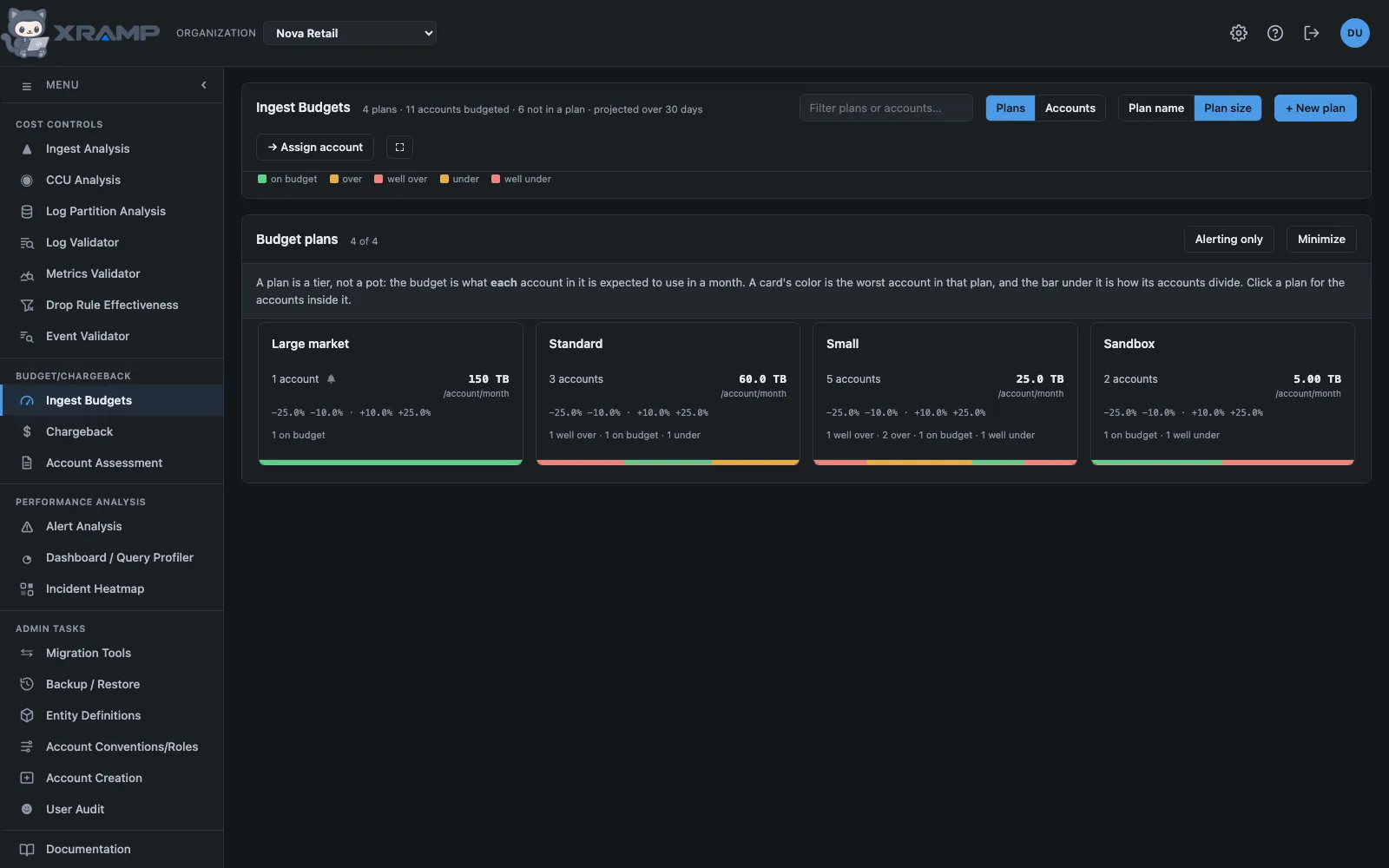
What it shows and how to read it
What an account is expected to use in a month, and whether this month's rate will take it there.
A plan is a tier, not a pot
A budget plan says what one account in it should use in a month, so "Large market, 100 TB" is a size several accounts can each be held to. The budget is not divided between them and their usage is not added up against it.
That is what makes the two findings the screen exists for possible. An account heading over its tier has ingest worth remediating. An account heading well under it is usually in the wrong tier, and moving it down is the cheaper fix.
The four thresholds are percentages of the budget, above and below, because one plan has to fit whatever account is put in it. A critical line has to sit outside its warning line, or the warning could never fire first and one of the two means nothing; the screen refuses a plan written that way.
What the color means
Health is judged on where the month will land: what the account has ingested so far, plus a daily rate for the days still to come. From a week in, that rate is this month's own daily average; in the first week it leans on last month's and moves across as the month fills in, and the line under the heading says when that is happening. The events sent to New Relic carry the same projection, so the first of a month does not raise breaches from a few hours of traffic.
A month-to-date figure would read green on the 2nd and red on the 30th whatever the account was doing, which is no use for deciding anything. A daily average does not care what day it is, which is the same reason the accounts screen leads with one.
Green is inside both warning lines. Yellow is past a warning line, over or under. Red is past a critical line. An account the latest snapshot does not carry is grey rather than green: not measured is not the same as on budget.
Under budget monitoring
Each plan has an Under budget monitoring switch, on by default. On, accounts running under budget are shown in the appropriate color and counted, and under budget breaches are sent to New Relic if the plan's Send a custom event box is ticked. Off, only over budget breaches are indicated, and only over budget breaches are sent to New Relic. Running under the budget is treated as fine: no color, no warning and no event. The plan still uses the same warning and critical lines for running over, its lower thresholds are set aside, and its card says under not watched.
New budget plan wizard
+ New budget plan opens a wizard with four steps, on either tab. It defines the plan, puts whole accounts in it, adds budgets for subsets of data, and lets you review it all before it is saved.
1. Plan. A budget plan is a defined budget that is applied to one or more accounts, or to a subset of data. A subset of data is represented by a query or a set of tags, and multiple tags and queries can be added to one plan. Give it a name, a monthly budget per account or query, the under budget monitoring switch, the warning and critical lines, and whether to send custom events to New Relic. 2. Accounts. Is this a budget that represents an entire New Relic account or accounts? Every account selected is monitored under this plan. An account can only be in one plan, so selecting one that is in another plan moves it, and the step says how many. The list has a filter and a Show all selected box. This step can be left empty. 3. Data. Is this a budget for a subset of the data in an account? Pick the accounts the query runs against, then choose tags or write NRQL, with samples of what a query returns, and press Add query to budget definition. Each query becomes a budget in the plan. Several can be added, but nothing checks that their results do not overlap, so make sure they do not. A query that is complete but not yet added stops Next, so it is not lost. 4. Review. Shows the plan, the accounts and the queries. Save plan creates the plan with its accounts and budgets in one go. If it cannot be saved, nothing is kept. The new budgets are measured straight away.
Save as draft is on every step. A draft keeps everything entered and the step you were on, and appears on the budget plans box under Draft budget plans, where Continue reopens the wizard at that step and Delete discards it. Saving the plan removes its draft. Drafts are for admins.
Plan view and Budget view
The two buttons in the heading choose how the budgets are shown.
Plan view is the default: one card per plan with its name, its per-account budget, how many accounts are in it, and a bar showing how those accounts divide between the states. A plan's color is its worst account, because a tier holding one account 90% over is not a healthy tier however many others are fine.
Click a plan for the accounts inside it, with month to date, daily rate, projection and how far each sits from the budget. Clicking an account card opens the same list with that account marked, so it can be read against the others in its tier.
Each row carries an Ingest button to that account on the Accounts screen, with its data sources and what each of them is doing. The budget says an account is over; the next question is always which source, and that is the screen that answers it. The button appears for readers who have that screen.
Budget view switches the cards to one per budget, each showing its plan, its budget and its own indicator.
The second toggle beside it sorts by name or by size, and its labels follow what is on screen: plan name and plan size over the plans, and budget or account name and size over the budgets. Size is the default, because the question that brings somebody here is usually which of these is big; name is how you find one you already have in mind. The bar's middle is the budget, not empty: being far under is a finding too, and a bar that only grew to the right could not show it.
Two tabs: accounts, and tags or NRQL
The budget plans box has two tabs. Accounts is what is described above: each account is a budget, held to the size of the plan it is in.
Tags and NRQL holds budgets for part of one or more accounts. A shared account can be split between the teams that use it, each with its own budget. A budget is picked in one of two ways, the same two the chargeback invoice builder offers:
- Tags. Pick the accounts, and the app reads the last day of their data for the tags it carries. Tick a tag, choose its values, and the budget covers only the data that matches. Several tags must all match.
- NRQL. Admins only, since a query can read any record. Write what follows FROM, narrowed with WHERE, for example <code>FROM Log WHERE service.name = 'checkout'</code>. Show 100 records shows a sample from each account, so the query can be reviewed before it is used.
Each budget is labeled by how it is picked: NRQL or Tag based. A plan on this tab is labeled by the budgets it holds: NRQL, Tag based, or NRQL / Tags when it holds both. A budget goes in a budget plan, the same plans the Accounts tab uses, and the plan's size and warning lines judge it. The New budget plan wizard, described above, makes the plan, its accounts and its budgets together. On this tab, Plan view shows each plan with the budgets inside it and Budget view shows each budget. The pencil on a plan card edits the plan's size and lines, and the pencil on a budget card edits that budget.
A budget is measured once a day by the Budget measurement job in Admin, and straight away when it is saved, reading back a week. Each day's figure is kept, because New Relic holds raw events for only about a week, so a month can only be added up from days read on the day. Until the month has a week of its own, the projection leans on last month's rate, as it does for accounts. A day that could not be read is marked on the budget as a gap and left out, and is never recorded as zero.
Changing which accounts, tags or query a budget uses starts it again, because the days kept describe the old selection.
Cards or a list
Two icons at the right of the budget plans box switch what is on screen between cards and a list. Cards are the default, and the choice is remembered in the browser.
The list shows the same things as the cards, as a table, in place: no window opens. Plan view lists the plans, with each plan's size, its warning and critical lines, how many budgets it holds, its state and its mix of states. Budget view lists the budgets: each account on the Accounts tab, or each tag or query budget on the Tags and NRQL tab, with its plan, the plan's size, month to date, per day, projected, how far from budget, and its state. A tag or query budget also shows what it is picked by.
Click a heading to sort by it, and click it again to reverse. The name and size buttons in the header sort as before until a heading is clicked. Click a row to open its plan, as clicking a card does. Alerting only and the filter apply to the list too. Minimize applies to cards only.
Many plans: Alerting only and Minimize
Two buttons in the heading of the plans box help when there are dozens of plans.
- Alerting only hides every plan that has nothing wrong and orders the rest. Plans in which every account is over budget come first. Plans where some accounts are over and others are on budget follow, the one with the most over first. Plans that are only under budget come last. Press it again to show every plan.
- Minimize shrinks each card to its name and state, keeping the color along its bottom edge, so far more plans fit on the screen. The button becomes Expand. A plan with Under budget monitoring off is not flagged for running under, so it only counts as alerting when it is over.
Both choices are remembered in the browser.
Who can change what
Anyone granted the module can read both views and open a plan. Creating, editing and deleting plans, creating tag and query budgets, and moving accounts between plans, is an admin's, because a budget is what everybody else is measured against. The server enforces it as well as the screen.
Assigning shows every account as a ticked list rather than a dropdown, with a filter and a box for narrowing to what you have ticked, so several accounts can go into a plan in one go.
An account can only ever be in one plan. Ticking accounts that are already in one is allowed and moves them, and the dialog says how many of your ticks that applies to before you assign.
A plan can only be deleted once it is empty. One that still holds accounts or tag and query budgets is refused, with the count and what to do about it, and the accounts open so they can be moved: deleting it would quietly un-budget every account in it, and emptying it first is the same work done where it can be seen.
The account list when assigning is alphabetical, because it is read by somebody looking for a name they already have in mind. The accounts screen orders by ingest, which is the right order there and no help at all for finding one account among two hundred.
Telling New Relic about a breach
A plan can send its warnings and criticals back into New Relic as custom events, which is how a budget becomes something that pages somebody rather than a color on a card you have to remember to look at. Tick Send a custom event to New Relic for warnings and criticals on the plan, and a bell appears on its card.
The event type is XRAMP_budgets. It is written with an underscore because New
Relic accepts only letters, digits, underscores and colons in an event type and rejects the
whole batch over a hyphen.
One event goes out per breaching account, carrying its status (Warning or
Critical), which side it breached on (High or Low),
the account name and id, the plan and its budget, the threshold percentage that was
actually crossed, the budget owner, GBL and cost center from Chargeback, and the month to
date, daily rate and projection in GB. An account inside both warning lines sends nothing:
on budget is not news.
Alert on them in the events account with a condition over SELECT count(*) FROM
XRAMP_budgets, faceted by accountName, filtered to the status you care
about. The threshold is on the event, so a condition can say "critical, over budget"
without repeating the numbers each plan was written with.
They go out once a day, after the daily snapshot, because the projection they carry only moves when the snapshot does. A shorter timer would repeat an unchanged number under a new timestamp, and evaluating on a page load would make the volume depend on who happened to be browsing.
The Event API key
Admin, New Relic holds a second key for this, beside the one everything else queries with.
That is not a preference: the Event API takes an ingest key and refuses a user key,
so the NRAK- key the rest of the application uses cannot send an event.
Creating a new user key does not help, because it is the kind of key that is wrong, not
that particular one. The field refuses an NRAK- outright rather than storing
it and failing every night at two, and says so beside the field as well as at the Save
button.
Get one in New Relic under API keys, Create a key, with key type Ingest -
License or Ingest - Insert, in the account the events are going to. An insert
key begins NRII-; a license key is a 40 character string ending
NRAL. The account's existing license key works too, so there may already be
one to use.
If a key that looks right is still refused with a 403, the usual cause is that it belongs to a different account from the events account ID below it.
Set the Events account ID to the account the events are written to, which is the account the ingest key belongs to and the one the alert condition is written in. The line under the box names that account back to you, so a number typed one digit short is obvious before anything is sent to it: a wrong account ID is refused by New Relic with the same 403 a wrong key gets, which sends you looking at the key.
All three buttons below the fields save what is typed in them first. A key typed above a button marked Send is meant to be the key that sends, so pressing the button stores it and then uses it, and the answer says so. Save settings still works the same way; you no longer have to remember it before testing.
Preview events builds what today's run would send without sending it, and Send now sends it immediately. The line under them says what the last scheduled run did, so a key that stopped working is visible on the screen that sets it rather than only in the log.
Test event sends one made-up event. It exists so the key, the account and the alert condition can all be proven before a real breach exists to prove them with, and so the answer to "is this wired up" does not have to be "wait for an account to go over".
The values are random but consistent with each other: a status and a side, a budget, a threshold, and a projection that really is past that threshold in that direction, with the daily rate and month to date derived from it. A chart built against a test event will not disagree with itself.
Two things make it safe to press. The account and plan names are invented, all beginning
"X-RAMP Test", so nobody reads one as an account of theirs going critical. And it carries
test: true, which a real event never does, so a condition written as
WHERE test IS NULL will ignore every test send. The screen says what it sent,
and the full payload is in the browser console.
Pressing it does not touch the line reporting the last scheduled run, because a test overwriting that would hide a nightly send that has been failing all week.
Related modules
Every X-RAMP plan includes every module. See the plans.