
Kanban Boards for New Relic
Combine X-RAMP tasks with external tasks to collaborative Kanban boards for simple tracking and reporting of efforts
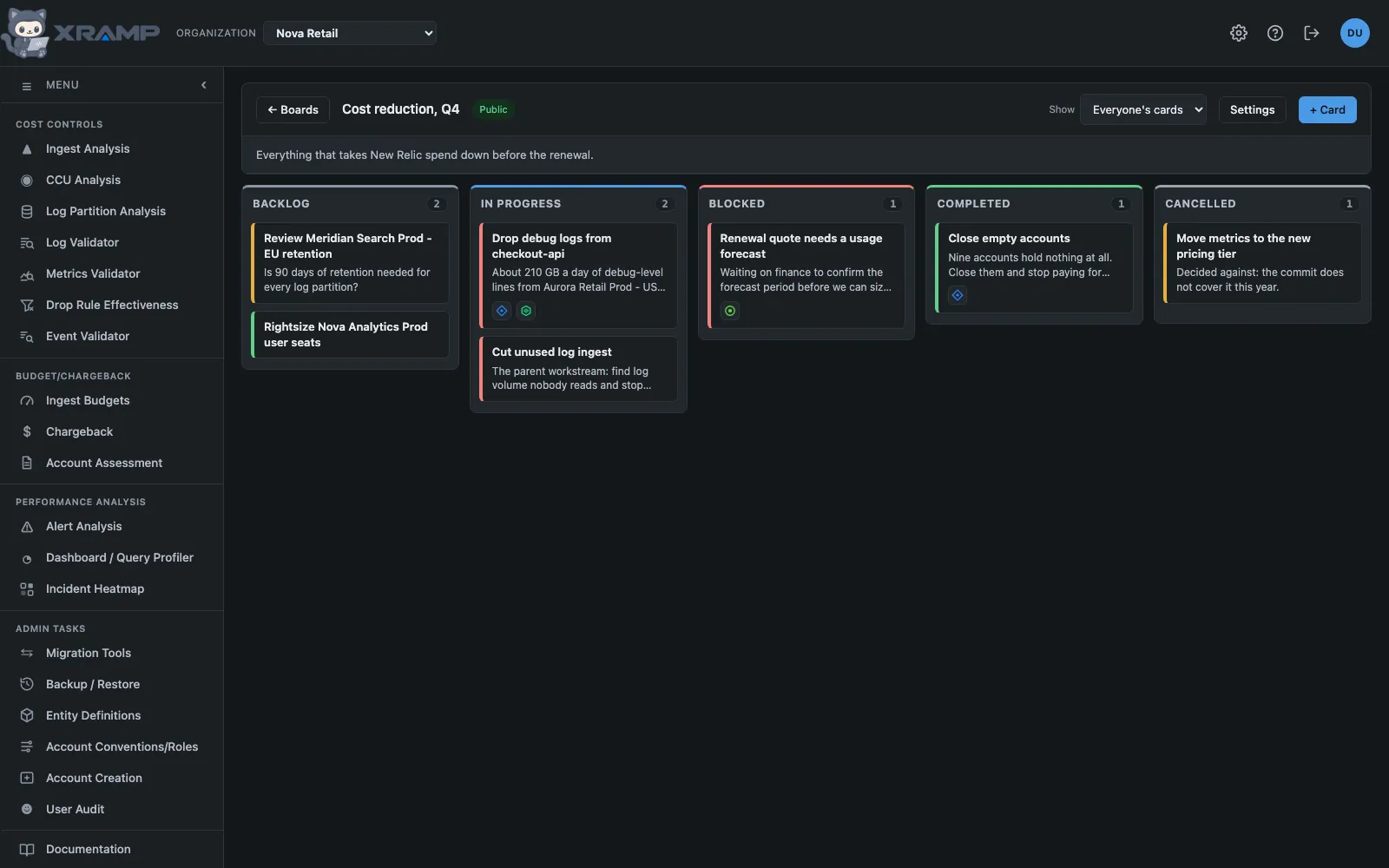
What it shows and how to read it
Boards of cards laid out in five columns: Backlog, In progress, Blocked, Completed and Cancelled. A card can stand for a workstream or a task, or be a piece of work of its own that is neither. Boards belong to the organization you are working in: a board made in one organization is not seen from another.
The boards
The first screen is a tile for each board you can see, with how many cards sit in each column, who made it and when it last changed. Click one to open it. New board makes one. Give it a name and say who can see it:
- Private. Only you. Nobody else can see it, an admin included.
- Public. Everyone in the organization can see it. Only you can change it, unless you tick people, who can then change it too.
- Shared. Only the people you tick can see it, and they can change it as well.
Changing a board means adding, editing, moving and deleting its cards and adding notes. Its name, who can see it and deleting it stay with whoever made it, under Settings. Deleting a board deletes its cards and their notes.
Cards
A card is drawn small: its name, the start of its description, a colored edge for its priority (red for high, yellow for medium, green for low), and an icon for each link it carries. The icons open the link in a new tab: a diamond for a Jira ticket, a hexagon for New Relic, a circle for a ServiceNow ticket.
Click a card to open the whole of it:
- Name and Description.
- Status, which is the column it sits in.
- Priority: high, medium or low.
- Due date.
- Assignee: anyone in the organization.
- Stands for: a workstream or a task, chosen from the ones that exist, for a card that tracks one. Choosing one on a new card fills in its name, description and priority. Leave it at nothing for a card of its own. This is offered to people who have Workstreams.
- Links: a Jira ticket, a New Relic page and a ServiceNow ticket. Only web addresses are accepted.
- Notes: each one is stamped with the time and who wrote it, newest first, and cannot be changed afterwards.
Who made the card and when is shown under the links. + Card adds one to the board.
Moving a card that stands for a workstream or a task into another column, by dragging it or by changing its Status, updates that workstream or task to match. Backlog sets it to backlog, In progress to in progress, and Completed to complete, or confirms it is already there. Blocked and Cancelled have no matching status, so they leave it as it is. Every move of a card that stands for a task also adds a note to the task's work log, naming who moved it, from which column to which, and what happened to the status; the log stamps the date and time. A workstream has no work log, so its card changes the workstream's status and writes no note. Moving a card to a new place in the same column changes nothing.
Moving cards
Drag a card to another column and its status changes to match. Dropping it on a card puts it above that card; dropping it in empty space puts it at the foot of the column. The same can be done without dragging, by opening the card and changing its status.
Filtering
Show, at the top of a board, narrows it to the cards assigned to one person. It lists everyone with a card on that board, and Unassigned where there are any.
Related modules
Every X-RAMP plan includes every module. See the plans.