
Workstreams for New Relic
Turn findings into tracked work: workstreams of tasks with owners, priorities and target dates, and what each would save.
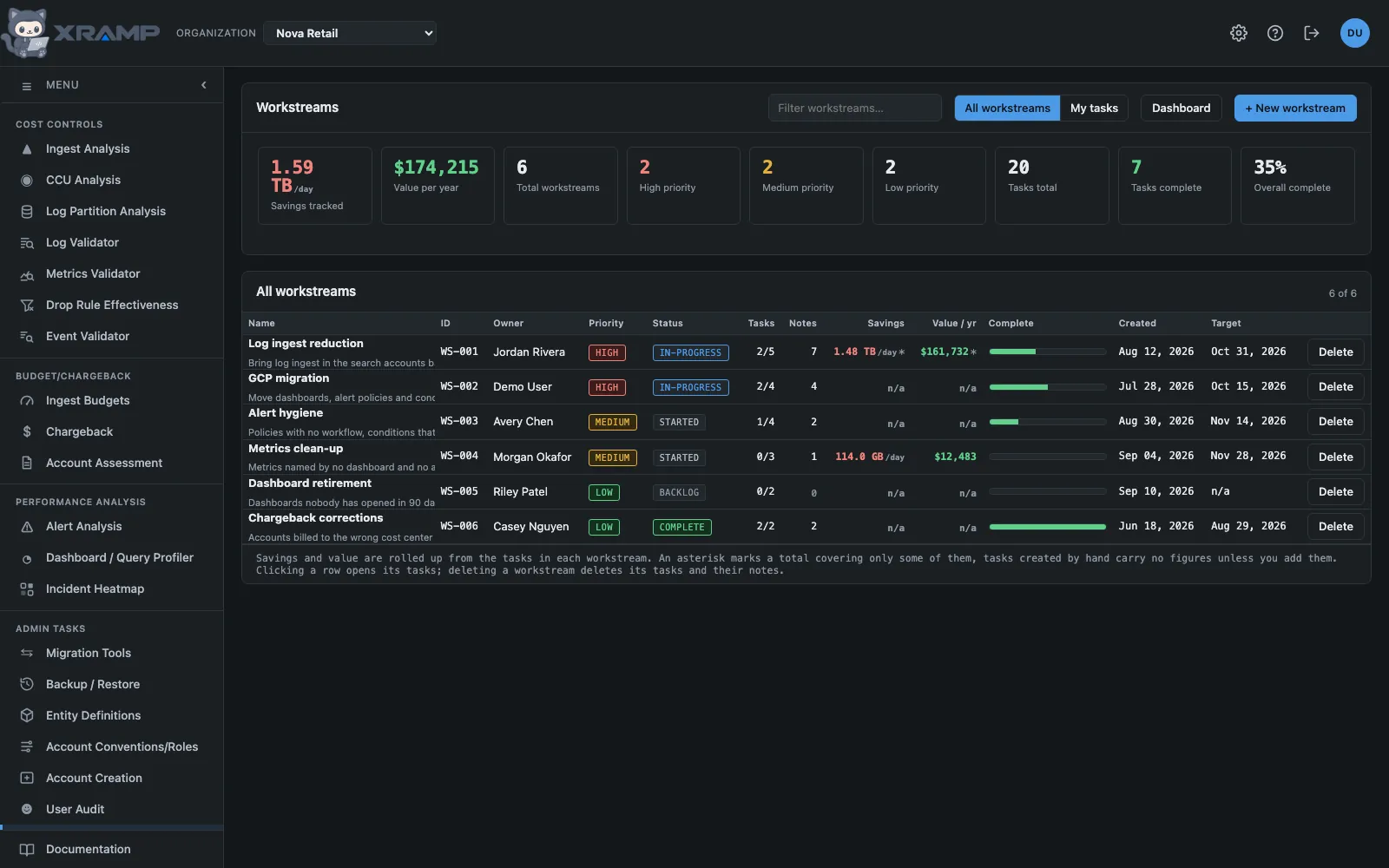
What it shows and how to read it
A workstream is a definition that holds one or more tasks. Use it to turn findings from the other screens into work someone owns.
Completed workstreams
The completion figures, the percentage on the cards and the counts of tasks done count every task of a complete workstream as done, whatever status each task was left in. The tasks themselves are not changed, so reopening the workstream puts the figures back to what its tasks say. Complete the tasks too if you want their own status, completion date and savings recorded as realized to say so.
All workstreams, or my tasks
The switch beside the filter changes what the page is about. All workstreams is the estate. My tasks is the work assigned to you, drawn from every workstream at once and shown in the same table you get by opening a workstream, so a task reads and edits the same either way.
Two tiles change meaning with the switch, deliberately. The priority counts become task priorities rather than workstream priorities, and Total workstreams becomes how many workstreams you have work in rather than how many exist. Tasks are matched on the Assignee field, against your username or your full name, so either spelling finds them.
The dashboard
Dashboard beside New workstream opens the same numbers drawn rather than tabulated: where the work sits, how it divides, and what all of it is worth.
Two pie charts, one for workstreams and one for tasks. Each can be cut three ways with the buttons above it: by status, by priority, and by who owns or is assigned it. Three rather than one because "distribution" means whichever of these you came to ask about, and all three are already counted.
It opens on status, unless everything is in the same status, which it is until people start moving work along. A pie with one slice reads as a broken chart rather than as an answer, so the page opens on a cut that divides and says underneath why it did.
Names are not a fixed list the way priorities and statuses are, so owner and assignee show the ten largest and gather the rest into one slice. Work with nobody's name on it counts as unassigned rather than being left out, which is usually the finding worth having.
Below the charts, a card per priority showing its tasks with the workstreams they sit in underneath, because four workstreams marked high can hold two tasks or two hundred. Then the two figures the work exists for: ingest saved a day, and value per year. Both say what they do not cover. A task added by hand carries no figures unless you type them, and a total that hides the tasks it skipped reads as the whole estate when it is a part of it.
Colors mean the same here as on the list page. High is red wherever it appears, complete is green, and names take a neutral ramp because a name has no meaning of its own to color.
In any task list, a task whose target date has arrived or passed and that is not complete shows its name in red with *followup under it. A completed task is never marked, however late it was. Clicking the marker opens a window to write a note into the task's work log and set a new target date; either on its own is enough, and the note is kept even if the date cannot be saved.
The Priority, Status, Impact and Value columns sort, in both a workstream's tasks and My tasks. Priority and status sort by what they mean rather than alphabetically, so the first click puts the most pressing first: high before low, open before complete. Impact and value start with the largest, and a task carrying no figure sinks to the bottom either way rather than crowding the top.
The summary
Totals across every workstream: how many there are, how they break down by priority, task progress, work log notes, and the savings and value rolled up from the tasks inside them. Realized counts only completed tasks, so projected value and banked value stay separate.
The Notes column counts work log entries across every task in that workstream, and the tile above totals them across all of them, so it is visible which work has been written up and which has only been recorded as a status.
Savings and value
Both are rolled up from the tasks in each workstream, using the figures each task captured when it was created from a finding. An asterisk marks a total that covers only some of the tasks, which happens when a task was created by hand and carries no figures. A partial sum is never presented as a complete one.
Deleting
Deleting a workstream deletes its tasks and every note on them. Deleting a task, or a workstream with its tasks, also frees the findings they tracked: Alert Analysis, Variance analysis and Log record size show them as untracked again the next time you come back to them. You are asked to confirm and told how many tasks go with it.
Click any row to open that workstream's tasks.
Related modules
Every X-RAMP plan includes every module. See the plans.