
CCU Analysis for New Relic
See the people, alert conditions and dashboards consuming the most compute across every account, and how that is trending.
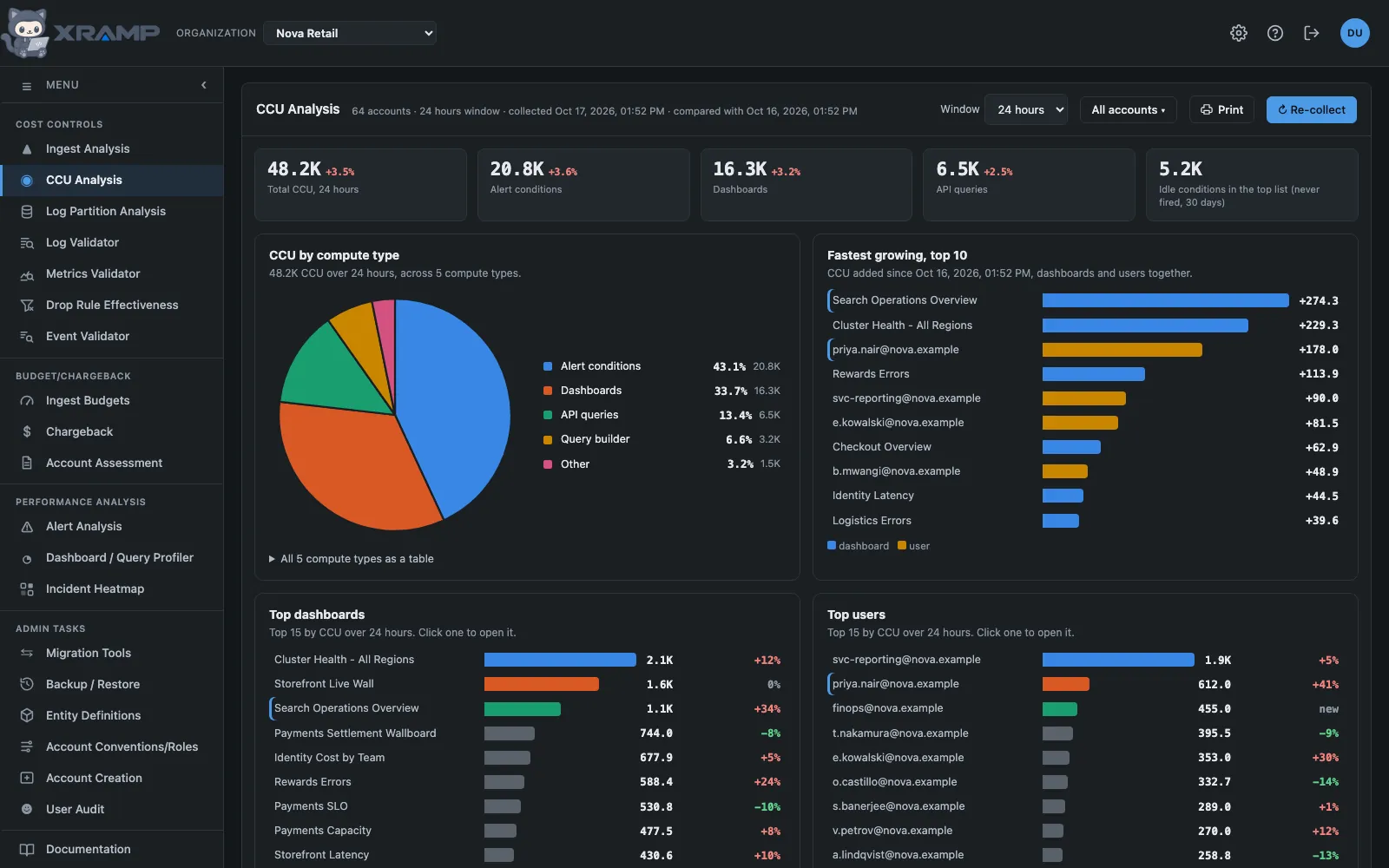
What it shows and how to read it
Where compute is going, drawn as charts in the same style as the Ingest charts. Along the top are the total CCU and its three largest compute types, each with its change since the previous snapshot. Below them: CCU by compute type (a pie chart), Fastest growing (the dashboards and people whose CCU rose most since the previous snapshot), the Top dashboards, the Top people, the alert conditions that cost CCU and never fired, and beside it the top alert conditions that have fired, with how many incidents each raised. Hover a bar or slice for the details, and open the table under any chart for the same figures as text.
The Window picker chooses 24 hours, 7 days or 30 days. Each window is its own snapshot, collected when somebody asks: pick a window that has none yet and press Collect, or press Re-collect to refresh the one on screen. Only the 24 hour window collects itself when it is old, since the longer ones query a longer span of every account.
The account picker narrows every chart and tile to the accounts you tick, and says how many are chosen. Type in its box to find an account, and All accounts clears the choice. Nothing is asked of New Relic when you narrow the screen, because each snapshot keeps every account's own figures and its own largest rows. A snapshot taken before this existed has no such figures, so the picker is disabled until the next collection.
Every row leads to the screen that explains it. A dashboard opens in the Dashboard Profiler, on that account, with its widget queries and what each costs. A condition opens the Incident Heatmap for its account, filtered to that condition, hour by hour. A person opens User Audit for their address.
A condition's CCU is what evaluating it costs, which it pays every cycle whether or not it ever breaches, so the most expensive condition in an account can be one that has never fired. The last chart counts the incidents each condition raised in the last 30 days, and lists the ones that raised none, which is where that money is most clearly wasted: seventeen of Aurora Retail Prod's fifty dearest conditions have never fired, the first of them costing over nine thousand CCU a day. It is read when the screen opens rather than collected with the snapshot, so a snapshot taken before the column existed still fills it in, and it is kept for half an hour because a thirty-day count barely moves.
A condition sent from here that is not among the fifty gets a row of its own on the map, named and linked in the first column like any other, carrying the hours it actually has. One that never fired has a row of empty cells and is marked as such, which is the honest shape of that answer; the note above the table says why a condition can cost a great deal and fire nothing. The name and its link come from the entity catalog rather than from the incidents, since a condition that never fired appears in no incident at all, and where an account runs two conditions under one name the policy the row came from picks the right one.
What is counted
One feature, Cloud bytes received under Cloud Rule processing, records a count of bytes in New Relic's CCU metric rather than compute. In one account it came to 93 trillion where the account's real CCU was under half a million, which made Cloud Rule processing look like the whole estate. It is left out of every figure by default. Admin, under New Relic, has a box that counts it again, and it takes effect from the next collection. The drop rule features under Cloud Rule processing are real CCU and are always counted. A snapshot taken with one setting is never used for the trend of one taken with the other, so the first collection after changing it shows no trend.
CCU is New Relic's compute unit, separate from ingest. The figure is the billable
CCU metric only. New Relic also reports AdvancedCCU and
CoreCCU, which are the two halves of that same total, so adding all three
would count everything twice.
Why collection takes a few minutes
Compute does not roll up the way ingest does. The rollup account reports only its own compute, so this queries every account in turn. A snapshot is kept for 24 hours, since compute is a daily figure and a day-old view is already stale. Re-collect ignores that.
Trend
Each row is matched to the same dashboard, person or condition in the previous snapshot, by name rather than by rank, since rank moves on its own. A row with no match is marked new, unless it belongs to an account whose list in the previous snapshot was full. Each account keeps only its largest rows of a kind, so the row may simply have been just below that cut. It is then marked increased usage, and its tip says it was no larger than the smallest row kept for that account. An account that left the top fifty is compared with its own recorded total instead. Up is shown in red because more compute is more cost. A row with no match is marked new rather than up from zero, which would read as a spike that never happened. With only one snapshot stored there is nothing to compare and the column reads n/a.
The snapshot date
It sits in each panel header rather than in every row, because it is a property of the snapshot and would otherwise repeat identically down fifty rows of three tables.
Coverage
Only compute that names its consumer can be ranked. Alert evaluation names its condition and policy, and dashboards and interactive queries name theirs. Background processing such as pipeline rules is real compute and is counted in the totals at the top, but it has no dashboard or person to attribute it to, so it appears there and not in the three tables.
Related modules
Every X-RAMP plan includes every module. See the plans.