
Ingest Analysis for New Relic
Track every account's ingest against its own history, spot trends, find what drove them, and get remediation recommended.
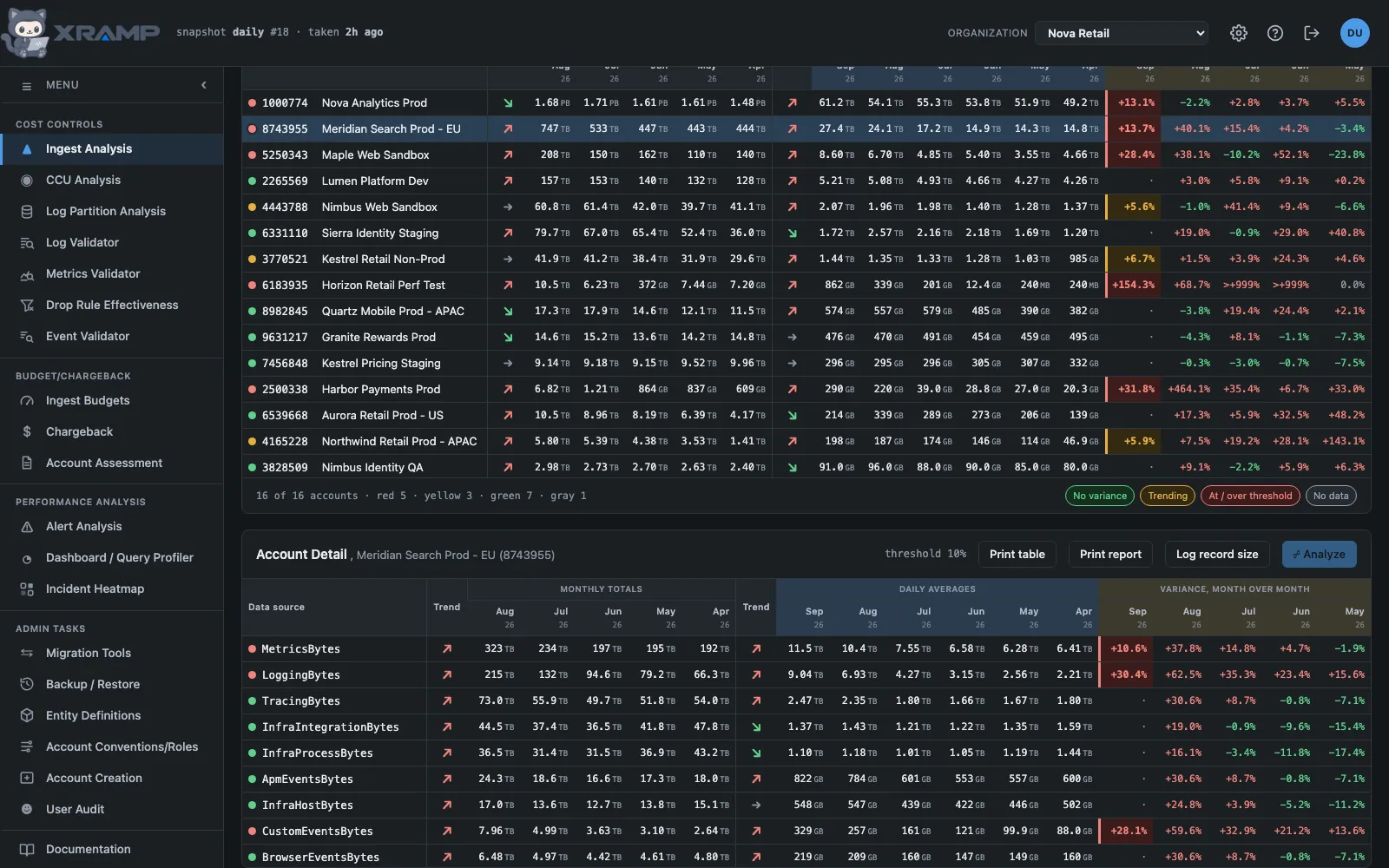
What it shows and how to read it
One row per account, showing ingest for the current partial month plus the five complete months behind it, as monthly totals and as daily averages. The filter box above the table matches an account's name or id, and several terms separated by commas show accounts matching any of them, so "PLT, ORC" lists both.
Charts
The chart icon, the first control before Budget | Account, opens a dashboard of charts in place of the table. Back to ingest analysis returns to the table; opening another module closes the charts too. The charts are drawn from the same snapshot and the same figures as the table, so they always agree with it, and they follow the GB | $ switch.
Ingest by account is a pie of each account's share of the ingest for a month, current month so far by default; the Month box above it picks another. The seven largest accounts each have a color and the rest are one grey slice, because more colors than that cannot be told apart. Hover or tab to a slice, or to its row in the list, for the account, its percentage and its volume. All accounts as a table, under it, lists every account with its share to two decimals.
Fastest growing accounts is a bar for each of the fifteen accounts whose daily average ingest rose most, largest first. It compares the current month's daily average with the last complete month's, because a month in progress is smaller than a finished one for no reason but the date; in the first days of a month, when there is no average to speak of yet, it compares the last two complete months and says so. Bars measure the rise in volume a day, not the percentage, so a small account doubling does not outrank a large one adding more. The percentage, and the figures either side, are in the tooltip and in the table under the chart. An account keeps the same color on both charts; those outside the pie's seven are grey.
More charts will be added to this dashboard.
Account or budget
The toggle beside the filter decides what the table lists against. Account is the default and the table as it has always been. Budget adds two columns after the name, the Owner and the GBL from the Chargeback table, and opens sorted by GBL so the estate reads as the budgets that pay for it rather than as a list of accounts. Accounts not in the Chargeback table say so in the Owner column and sink to the bottom of that sort.
Clicking an Owner or a GBL that has a value opens the Chargeback screen with an invoice already filled in: every account sharing that owner or that GBL, this month, titled after the account clicked from. The invoice is generated but not saved, so it can be read, adjusted and printed, and saving it stays a deliberate press. Accounts that reported no ingest this month cannot be billed and are not in the picker at all, so the line under the button says how many were left out.
Both columns sort like any other, the filter and Alerts only still apply, and switching back to Account removes them and returns the table to its usual order. The toggle appears only for people granted Chargeback, because who pays for an account is that module's data; your choice is remembered.
Daily Avg or 7 day
The toggle between Account | Budget and GB | $ changes the group of daily columns. Daily Avg is the table as it has always been: one daily average for each month shown. 7 day swaps those columns for the actual ingest of each of the last seven days, one column per day, ending with today.
Days are days in the application's time zone, set in Admin under General, midnight to midnight, whatever the time zone of your browser, and each column is headed with its date and weekday. The hours are added up into days here, so the days stay right when the clocks change and a day is 23 or 25 hours long. Today's column says so far because it is partial. New Relic reports consumption about three hours behind, so a new day reads near zero for its first hours and fills in as the data arrives. An account that reported nothing on a day shows 0 for it.
The columns sort like any other, GB | $ converts them, and the monthly totals, trends and variance columns beside them do not change. The drill-down table under the accounts stays on daily averages, because the daily figures are per account. The table opens on Daily Avg every time; the choice is not remembered. The figures are read from New Relic when you press 7 day and kept for five minutes, so flipping back and forth is quick.
Ingest against budget
Beside the title: an arrow, the month so far, where it is projected to land, and the budget set in Admin. Projected is the month so far plus a daily rate for the days still to come. From a week into the month that rate is this month's own daily average, which makes the projection that average held all month. In the first week the rate leans on last month's average and moves to this month's as the days accumulate, because on the first of a month the "daily average" is a few hours scaled up to a day, and thirty days of an evening's traffic is not a projection. It and the month to date both turn red when that projection lands above budget and green when it lands below.
It is colored on the projection rather than on the figure so far, because a month is always under budget on its first morning and saying so would tell you nothing. Hover it for the daily rate and where the month is heading. The arrow is this month's daily average against last month's, using the same colors and the same flat band as the trend columns in the table. For a month's first three days there is no arrow, here or in the daily averages column: a dot stands in its place and says how old the month is, since a comparison made from a few hours points wherever those hours happened to. With no budget set, the figure is shown without a verdict.
Why daily averages matter
The current month is partial. On the third of the month it holds three days of data, so comparing its total against a full month would make every account look like it collapsed. Dividing each month by its elapsed days makes any two months comparable on any date, and everything the app decides is based on that figure.
Reading the colors
- Green. Below the trending line.
- Yellow. Trending. At or past the trending fraction of the threshold.
- Red. The variance threshold was met or exceeded.
- Gray. No data reported, or no baseline to compare against.
Gray is deliberately not green. An account that stopped reporting has a problem, and showing it as healthy would be the more dangerous default.
The dot in the variance column
For the current month only, a variance below the trending line is calculated but not shown. Early in a month the daily average rests on a few hours of data and swings wildly, so a precise looking number there would be mostly noise. Hover the dot to see what it is actually running at. Complete months always show their variance.
Trend arrows
The two arrows answer different questions, and each sits beside the columns it is drawn from.
The monthly totals arrow compares the last complete month against the one before it. A partial month's total is smaller for no reason other than the date, so it is left out.
The daily averages arrow compares the month in progress against the last complete month, which is what the figure at the top of the screen does. A daily average is not distorted by a partial month, so waiting for the month to end would report last month's direction while the columns beside it already show this month's. Hover either arrow for the two months it used and how many days each covers.
Click any account to load its data sources below. Sizes are scaled to real units, so a small account reads in MB or KB rather than as 0.00. Hovering a figure gives the exact value in GB.
Printing an account
With an account selected, Account Detail offers two printouts. Print table prints the data sources table exactly as it is on screen: the same columns, the same sort order, and GB or dollars as chosen. Print report is a summary of the account: this month against last, the variance against its threshold, the month by month history, and every data source with its status and share of the month.
Saved as a PDF, either one is named X-RAMP followed by the account name, for example X-RAMP-Aurora Retail Prod GCP.
Related modules
Every X-RAMP plan includes every module. See the plans.